
Descrición
Avoonta calls a new lead seconds after they fill in your form, with an AI voice agent that qualifies them and books an appointment. This plugin connects your WordPress forms to your Avoonta account.
Works with
- Contact Form 7
- WPForms (Lite and Pro)
- Gravity Forms
- Elementor Pro Forms
- Ninja Forms
- Fluent Forms
- Formidable Forms
How it works
- Connect with an API key (recommended) or an agent’s trigger link on the plugin’s settings page (Settings > Avoonta).
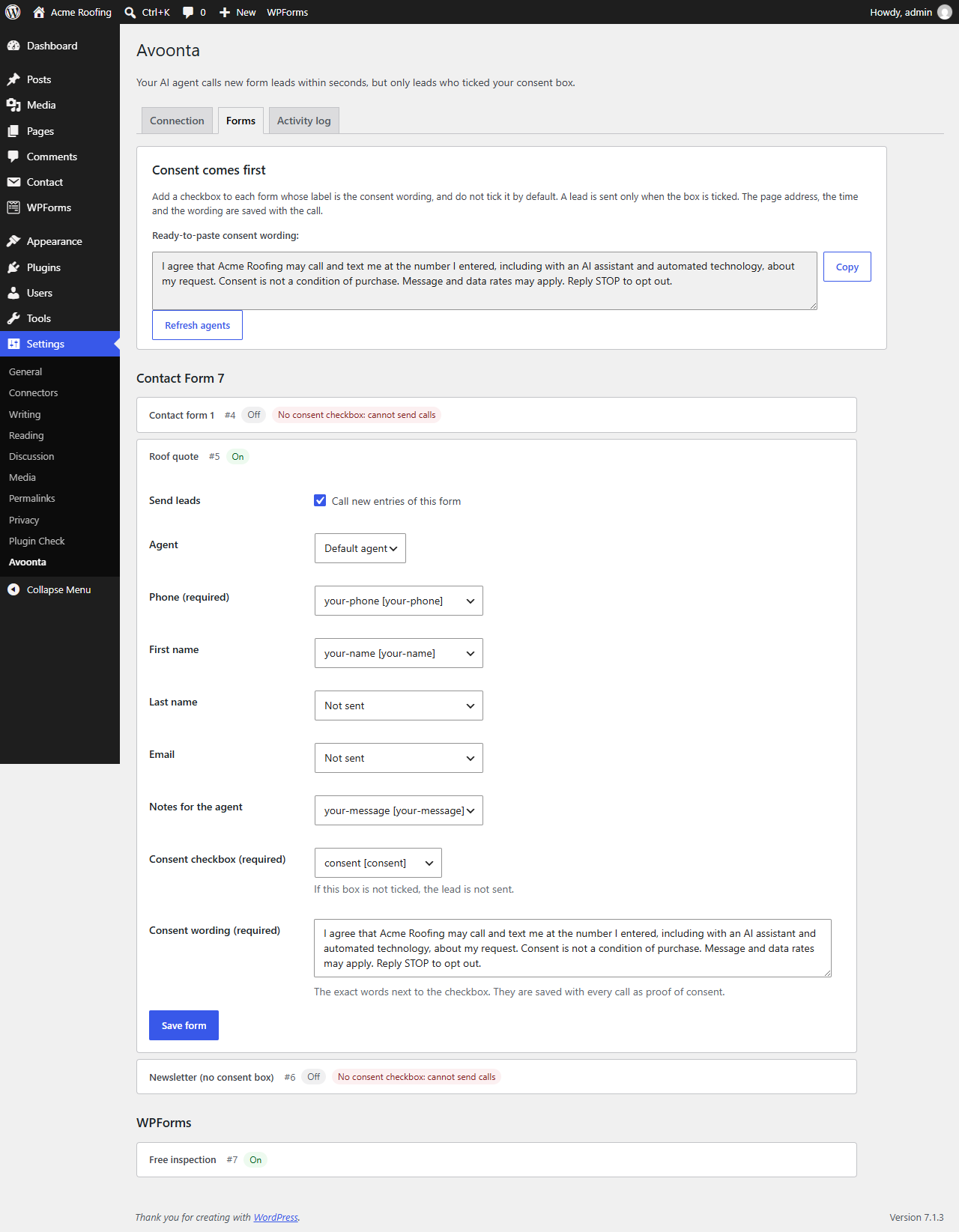
- On the Forms tab, switch a form on, choose the agent, and map the phone field (required) and, if you like, first name, last name, email and notes.
- Map the form’s consent checkbox (required) and paste the exact wording shown next to it.
- When someone submits the form and ticked the box, the plugin sends the lead to Avoonta in the background, and your agent calls.
Consent comes first
A lead is sent only when its consent checkbox is ticked. A form without a mapped consent checkbox and its wording cannot be switched on and never sends a call; the Forms tab marks it in red. With an API key, every call carries the lead’s consent record: the page address, the form, the exact wording and the submission time. Every call opens by saying the caller is an AI assistant.
Never slows your forms
Leads are sent in the background with WP-Cron, or with Action Scheduler when another plugin provides it. A slow or unreachable API never delays or breaks a form submission. A failed send is tried up to 5 times over about 80 minutes, and every retry uses the same idempotency key, so a lead is never called twice for one entry.
Calling hours are handled for you
Avoonta only calls between 8am and 8pm in the lead’s time zone, skips holidays you set, and never calls numbers on your do-not-contact list. A lead that arrives at night is called the next morning. There is nothing to set up in WordPress for this.
For agencies
White-label agencies can paste the trigger link from their own domain and give the settings page their own name (Advanced), so clients never see another brand.
Activity log
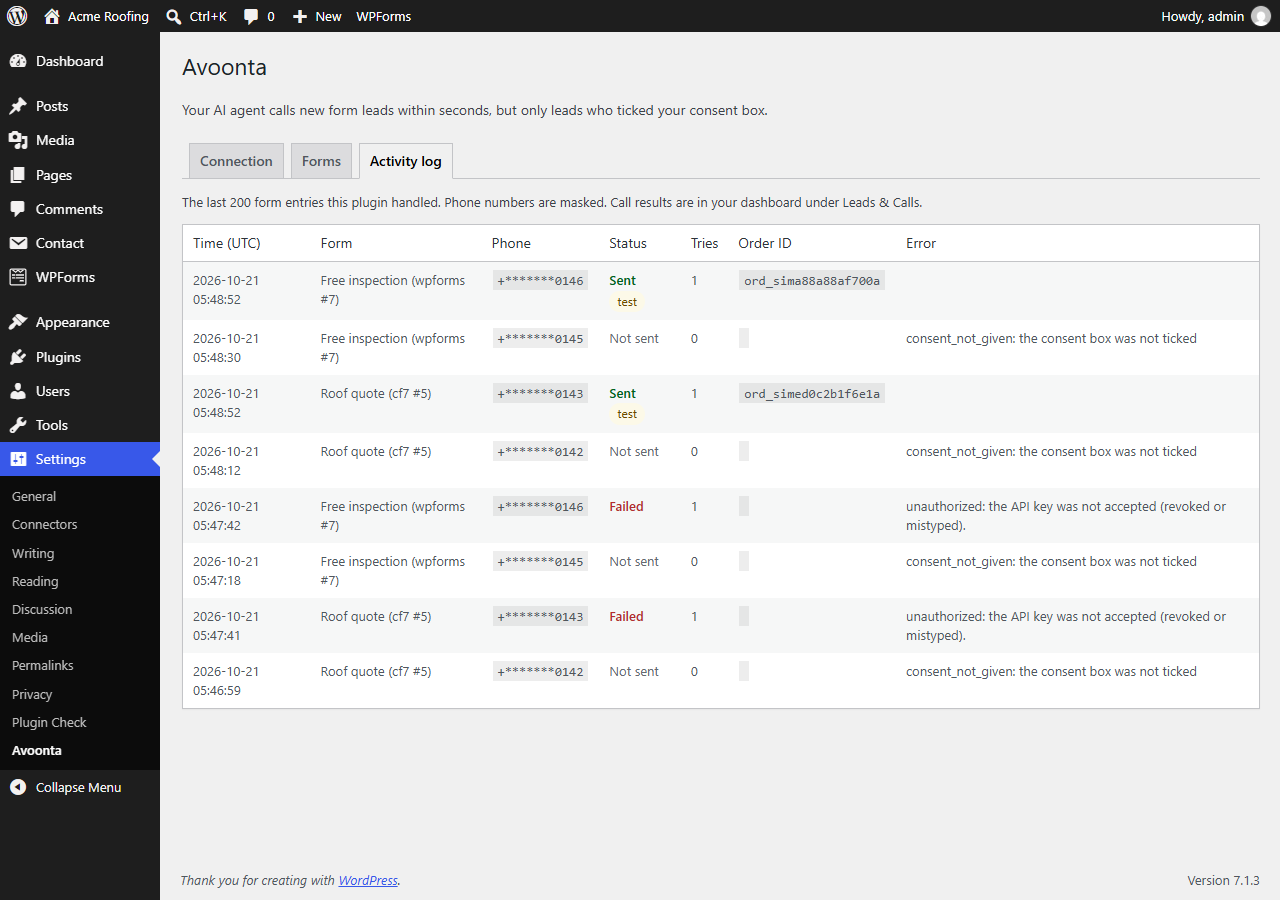
The Activity log tab shows the last 200 entries with their status, order ID and any error. Phone numbers are masked.
Test mode
Connect with an av_test_ API key to place simulated calls: nobody is dialed and nothing is charged.
You need an Avoonta account with a published agent. Calls are to US numbers only.
External services
This plugin connects to the Avoonta API to start AI phone calls to your form leads. It is required: without it the plugin does nothing.
- Service: the Avoonta API, at https://api.avoonta.com, or the API address your provider gave you (Advanced settings). With a trigger link, the plugin sends leads to the address of that link, which is the Avoonta API or your agency’s own domain. The plugin sends data to no other address.
- When: each time a mapped form is submitted with its consent box ticked (in the background, within seconds); when you press “Test connection” (GET /v1/me); and when the settings page loads or you press “Refresh agents” (GET /v1/agents, cached for 10 minutes).
- What is sent with a lead: the phone number; the first name, last name, email and notes if you mapped them; the submission time; and, with an API key, the agent ID, the consent record (page address, form name and consent wording) and a reference made of the form plugin, form ID and entry ID. Your API key is sent in the Authorization header. With a trigger link, the link itself identifies your agent.
- Not sent: other form fields, visitor IP addresses, cookies or WordPress user data.
- Avoonta Terms of Service: https://avoonta.com/terms
- Avoonta Privacy Policy: https://avoonta.com/privacy
Capturas


Instalación
- Install the plugin from Plugins > Add New, or upload the
avoontafolder to/wp-content/plugins/, and activate it. - In Avoonta, open API & MCP > API keys and create a key (start with a test key), or copy your AI agent’s lead link (trigger link) and switch it on.
- In WordPress, go to Settings > Avoonta, paste the key (or the link), save, and press “Test connection”.
- Add an unticked consent checkbox to your form. The Forms tab gives you ready-to-paste wording.
- On the Forms tab, open your form, switch it on, choose the agent, map the phone field and the consent checkbox, paste the consent wording and save.
- Submit the form with your own number to try it (an
av_test_key places a simulated call).
Preguntas frecuentes
-
Do I need my leads’ consent?
-
Yes. Only send leads who agreed to be called and texted by your business, including by an AI assistant. The plugin enforces this: a form needs a consent checkbox, the lead is sent only when the box is ticked, and the consent record (page, form, wording, time) is stored with the call. Do not tick the box by default. Avoonta also refuses any order without a consent record.
-
What wording should the consent checkbox have?
-
The Forms tab gives you a ready-to-paste sentence with your site name, for example: “I agree that Acme Roofing may call and text me at the number I entered, including with an AI assistant and automated technology, about my request. Consent is not a condition of purchase. Message and data rates may apply. Reply STOP to opt out.” Check it with your own legal adviser.
-
Why does a form say “No consent checkbox: cannot send calls”?
-
The form has no checkbox or acceptance field yet. Add one with your consent wording, then map it on the Forms tab. Until then the form stays off and no lead from it is sent.
-
API key or trigger link?
-
The API key is recommended: you choose the agent per form, and the page and consent wording are saved with every call. A trigger link needs no key but always uses that one agent, and its consent record is the statement you ticked when you switched the link on.
-
I am an agency with my own domain. Can my clients use this without seeing Avoonta?
-
Yes. Paste the agent’s lead link from your own domain (it looks like https://your-domain/v1/hooks/lead/hk_…) and, under Advanced, set “Name shown in WordPress” to your brand. The settings page and its menu item then use your name.
-
Will a lead be called twice if the form plugin fires twice or a send is retried?
-
No. Each entry gets a fixed idempotency key built from the form and entry ID (or, when the form plugin saves no entry, from the submitted values and time). Avoonta returns the first order for a repeated key.
-
The call did not happen. Where do I look?
-
The Activity log tab shows each entry’s status and error. “Not sent” means the consent box was not ticked, the consent checkbox is not mapped, the phone field was empty, no agent was chosen, or the plugin is not connected. Errors from Avoonta (for example a number outside the US, or a number on your do-not-contact list) are shown as returned. Calls wait for the lead’s 8am to 8pm window.
-
My site has little traffic. Will leads wait?
-
The plugin asks WP-Cron to run right after the form is submitted, so leads are usually sent within seconds. If your host disabled WP-Cron (DISABLE_WP_CRON), leads are sent when your server’s cron job runs.
-
What happens when I uninstall the plugin?
-
Deleting the plugin removes its settings, the saved API key and trigger link, the form mappings, the activity log table and any pending sends.
Comentarios
Non hai recensións para este plugin.
Colaboradores e desenvolvedores
“Avoonta” é un software de código aberto. As seguintes persoas colaboraron con este plugin.
Colaboradores
Traduce “Avoonta” ao teu idioma.
Interesado no desenvolvemento?
Revisa o código, bota unha ollada aorepositorio SVN, ou subscríbete ao log de desenvolvemento por RSS.
Rexistro de cambios
1.0.0
- First release: Contact Form 7, WPForms, Gravity Forms, Elementor Pro Forms, Ninja Forms, Fluent Forms and Formidable Forms.
- API key or agent trigger link, including trigger links on a white-label agency’s own domain, and a custom name for the settings page.
- Required consent checkbox: a form without one cannot send calls and is marked in red.
- Background sending with retries and idempotency; activity log with masked phone numbers.